How to Create Spreadsheets with ChatGPT for Your Small Business (Google Sheets & Excel)

Wouldn’t it be amazing if someone just handed you the perfect spreadsheet to track how your small business is doing? Without needing to be an operations expert? One that actually looked like the real deal, with clean layouts, charts, and maybe even a fancy pie graph or two? That’s exactly what ChatGPT can help you do... whether you’re building in Google Sheets or Excel.
For Google Sheets, ChatGPT even gives you ready-to-paste Apps Script code. For Excel, it can create full table structures, include formulas, and help you plan the logic. You just copy the output and tweak it directly in Excel or Google Sheets—no tech wizardry required.
Hi, I’m Irena from The SoloGenius, and today we’re diving into one of my favorite ChatGPT hacks that not only saves you time but seriously upgrades the way you work: creating Google Sheets with ChatGPT.
If you need something for your own business or want to create a helpful bonus for your clients, this is one of those tricks that feels like having a mini tech assistant on your team (but without the monthly payroll). Let’s jump in!
Why Use ChatGPT to Create Google Sheets?
If you’re like most solopreneurs, spreadsheets are either your best friend or your biggest headache.
But here's the thing: you don't have to be a “spreadsheet girl” to make powerful, functional Google Sheets.
You can easily create spreadsheets for your own business, or even offer them as bonuses in your products or services.
With ChatGPT, you can:
Create time-saving spreadsheets for your own biz
Offer high-value templates as bonuses in your digital products or services
Get help writing formulas you’d otherwise be Googling for hours
More examples on when to use ChatGPT to create spreadsheets later in this blog post.
You can even get ChatGPT to write the formulas for your Google Sheets, so it does the calculations for you, saving you loads of time and effort.
Whether you’re tracking KPIs or building a social media planner, ChatGPT can generate custom layouts and give you the formulas that make it all work.
Let me show you how to use this feature (even if numbers and spreadsheets make your head spin).
How to Use ChatGPT to Make a Spreadsheet
Here’s a step-by-step guide to creating Google Sheets with ChatGPT:
1. Tell ChatGPT What You Need
Start by telling ChatGPT what type of Google Sheet you want to create.
Include:
What the spreadsheet is for
What columns or tabs you want
Any formulas or calculations you need
For example, you might say:
“I need a Google Sheet to track my social media content calendar with columns for dates, post type, platform, and engagement metrics. Please include formulas to calculate average engagement.”
or, if you know exactly what you want and be more specific, use this prompt:
”I need your help to create a customized Google Sheet for my business. Here are the details:
Sheet Title: [Enter the name of your sheet, e.g., "Customer Journey Blueprint"]
Purpose: [Describe the purpose of this sheet, e.g., "To map out the key stages of my customer's journey from awareness to post-purchase."]
Key Sections or Columns: [List the main sections or columns you'd like to include, e.g., "Awareness, Consideration, Decision, Post-Purchase."]
Brand Colors:
[Enter HEX code]
[Enter HEX code]
[Enter HEX code]
Font: [Specify the font, e.g., "Montserrat."]
Any Specific Instructions or Formatting: [Mention any additional instructions, e.g., "Merge cells in the introduction, set row height to fit text, bold headers, auto-resize columns."]
Autopopulation Feature: [For example, I want the cell C2 in the second tab to autopopulate when the user enters details in a cell H2 in the first tab]
ChatGPT will then generate a code (using Google Apps Script), which you can easily copy.
It looks like this:
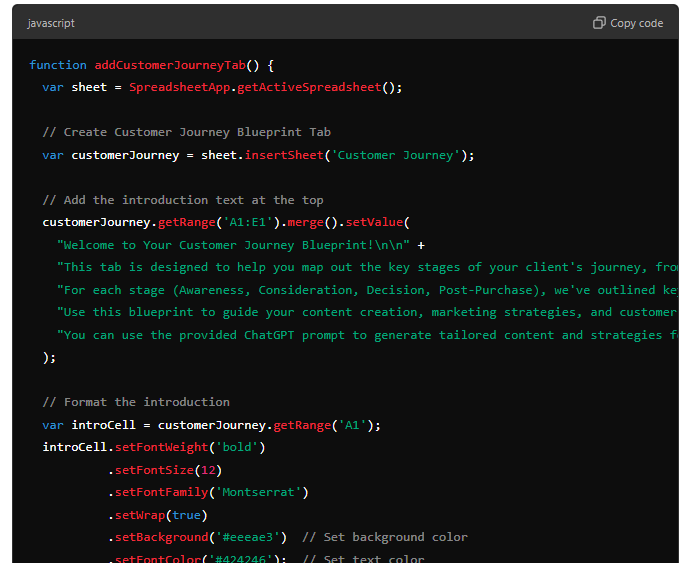
How to Copy Code from ChatGPT to Google Sheets
Once ChatGPT gives you a code block to paste into your Google Sheet, here's what you need to do to actually create the spreasheet.
1. Open a New Google Sheet
Open up a new Google Sheet in your Google account.
2. Go to Extensions > Apps Script
This is where you’ll add the code. When you click "Apps Script", you’ll see a text editor pop up.
3. Paste the Code
Replace whatever’s in there with what ChatGPT gave you.
4. Click Save and Run the Script
Click the ▶️ Play button to run the script. You’ll likely need to approve permissions.
And just like that, ChatGPT just helped you create a fully functional, formula-powered Google Sheet in no time!
You can always go back in and pretty it up with some styling… but the hard part? Done.
How Solopreneurs Can Use ChatGPT + Google Sheets
There are so many ways to use this, both inside your own business and as a value-add for your audience:
✅ For Your Business:
KPI Dashboards: Automatically track key metrics in your business (like sales, leads, conversions, etc.) with formulas set up by ChatGPT.
Task Management Boards: Keep track of your to-do list, priorities, and deadlines.
Client Management Sheets: Organize client details, contact info, and project statuses.
Content Calendars: Plan your content across platforms with formulas to track engagement
🎁 As Bonuses in Your Offers:
Budget or ROI Calculators: Offer useful tools like budget calculators, ROI calculators, etc., that your customers can use based on your expertise (and help them make smarter decisions)
Project Planners or Roadmaps: Create downloadable templates your clients or audience can use to track progress on their projects.
Goal Trackers: Create interactive goal-setting templates that help your audience stay on track.
Seriously, the possibilities are endless, and you don’t need to touch a single formula yourself.
Want Help Building These Faster?
Inside The ChatGPT Solopreneur Club, we go even deeper with this stuff. I share prompt packs, templates, and real examples to help you build spreadsheets, content, email funnels, and more (without the tech headache).
If you love the idea of creating smart systems in your business that save you time and wow your clients, you’ll feel right at home in the Club.
A Smarter Way to Use Spreadsheets
You don’t need to be a spreadsheet expert to build tools that support your business (or your clients). With ChatGPT and a few simple prompts, you can automate the boring parts and focus on what you love doing most.
Try it this week. Start with something small, like a content calendar or a goal tracker. You’ll be amazed at what ChatGPT can help you build (and how easy it really is).
And if you want even more support, come join us inside The ChatGPT Solopreneur Club. Let’s build your business, your way, with smart systems.
FAQs About Creating Spreadsheets with ChatGPT
1. Can ChatGPT create a spreadsheet?
Yes, it can! Just tell it what kind of spreadsheet you need, and it will generate the structure, formulas, and even custom code for Google Sheets using Apps Script or a formatted table for Excel.
2. How to use ChatGPT to make an Excel spreadsheet?
Start by asking ChatGPT to create a table with the columns and formulas you need. Then copy the table into Excel and tweak the formatting. It’s especially helpful for automating calculations or building templates from scratch.
3. What kinds of spreadsheets can I create with ChatGPT?
Pretty much anything - planners, dashboards, calculators, trackers, you name it.
4. Is it safe to run ChatGPT’s code in Google Sheets?
Yes, but always review what the code is doing and grant permission only if it makes sense for your use case.
5. How to copy code from ChatGPT to Google Sheets?
After ChatGPT gives you the Apps Script code, open your Google Sheet, go to Extensions > Apps Script, delete the default code, and paste what ChatGPT gave you. Hit save, run it, and voilà—your sheet is ready!
Give your AI the context it actually needs
Your ChatGPT or Claude is missing the full picture.
FREE AI Brand Brief Generator
Answer 6 questions and get a strategically structured document with key info about your business, so ChatGPT/Claude has the context it needs to understand your business properly and give you more relevant, useful, business-specific help.
(It's like the briefing any AI should have before you start asking it to do anything for your business.)
P.S. Use it in ChatGPT, Claude, Gemini, NotebookLM, or wherever you work with AI.
Hey, dear! I'm Irena
I'm your fellow solopreneur and a mom of 3.
My goal? Simply put, I'm here to help you grow your amazing small biz, find your flow, and save time using the power of ChatGPT to make every minute count.
How do I do it? I'm bringing the power of ChatGPT into your business strategy, offering easy and affordable solutions that keep you ahead of the game.
"Irena has shown me an entirely new side of my business through ChatGPT. I'm super excited to explore more ways to use it for my business." - Reese
"Irena's guidance has not only simplified my daily tasks but also given me peace of mind. I can't thank her enough." - Rachel
Have a week of Instagram content done in less than an hour.
AI Content Flow Studio (only $7/month)
Your solution to Instagram overwhelm.
A simple AI-powered system that keeps your business visible, builds trust with your audience, and finally makes content creation feel doable — even on your busiest weeks.
Your AI is ready. Your content system is waiting.
Cancel anytime. Just see how this month feels.